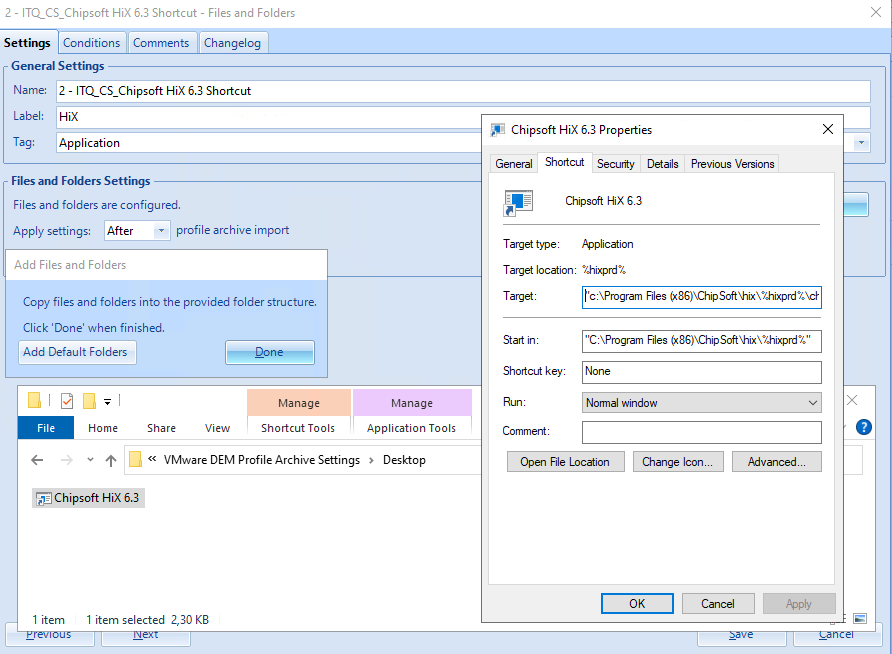
In our daily practice with Omnissa AppVolumes and DEM, you sometimes run into unexpected challenges. This week I encountered one myself with an application that relies on shortcuts containing specific parameters.
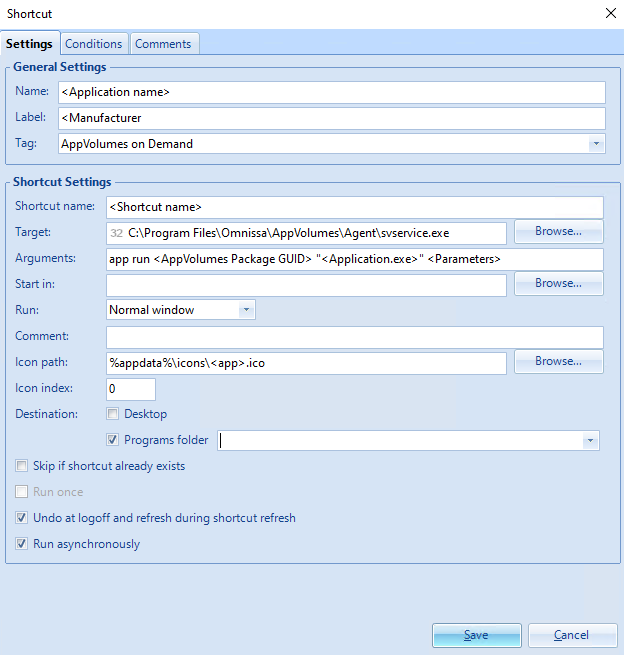
Since the application only needs to be available to a relatively small group of employees, we decided to deliver it through an AppVolumes On Demand package. The shortcut itself was created in DEM, pointing to svservice.exe with the required app run parameters. Time to test…
The Problem
When launching the shortcut, the familiar AppVolumes notifications appeared, but then nothing happened: the application simply didn’t start. After checking, the AppVolumes package was indeed attached. So the next step was to look at the logs.
In “C:\Program Files\Omnissa\AppVolumes\Agent\Logs\svservice.log” everything initially looked fine, the shortcut was reported as successfully started.

On closer inspection, however, it turned out that not all parameters were passed along. And that was the crux: the application wasn’t receiving the full command line it needed to run.
The complete command ended up being 282 characters long, exceeding the standard Windows limit. It was the combination of the AppVolumes On Demand option with the lengthy parameters that pushed it past this boundary, making a traditional shortcut insufficient.
Workaround
I am aware that there are other options available, such as modifying the MAX_PATH registry settings to allow longer arguments.
[HKLM\Machine\System\CurrentControlSet\Control\FileSystem]
"LongPathsEnabled"=dword:00000001
However, in this situation we deliberately chose not to go down that path.
To work around this, I created a PowerShell script from which the application is launched.
# Path to svservice.exe and arguments
$svServicePath = "C:\Program Files\Omnissa\AppVolumes\Agent\svservice.exe"
$appArguments  = 'app run <AppVolumes Package GUID> "<Application.exe>" <Parameters>'

# Launch svservice.exe and wait until it completes
Start-Process -FilePath $svServicePath -ArgumentList $appArguments -NoNewWindow -Wait
And created a DEM shortcut that directly points to the PowerShell script.

Functionally this worked well, but there was one drawback: when executing the script, a PowerShell console window briefly appeared. Even though it was only visible for a moment, I didn’t consider this desirable for the end user.

From Script to .exe with PS2EXE
That’s when I took it a step further. With PS2EXE, you can convert a PowerShell script into an executable file (.exe), see the PS2EXE project on GitHub for more information: https://github.com/MScholtes/PS2EXE. The advantage is that the script is “packaged” as a program, so no PowerShell window appears when it runs. For the end user, it feels just like starting a regular application.
The script itself was fairly simple:
Invoke-PS2EXE -InputFile "<Path to Script.ps1>" -OutputFile "<Path to Exe.exe>" -NoConsole -NoOutput
By converting this script into an .exe with ps2exe, I can call it directly from DEM without the PowerShell window flashing up. The result: the application starts as intended, the parameters are correctly applied, and the end user notices no difference.

Conclusion
It may not be the most elegant solution, but it’s a pragmatic approach that removes friction for the end user. Sometimes these kinds of workarounds are exactly what’s needed to keep the environment stable and user-friendly. And it highlights how useful tools like ps2exe can be for eliminating small annoyances and improving the overall experience.