Author: admin

  • The Puzzle Behind a Two Minute Delay

    The Puzzle Behind a Two Minute Delay

    A few weeks after upgrading App Volumes, an upgrade that hadn’t gone entirely smoothly, we started receiving reports from end users. They noticed that certain applications were suddenly taking much longer to launch. It quickly became clear that the issue was specifically related to App Volumes On Demand applications. What normally opened within seconds now took more than two minutes. The applications did eventually start, but the delay was unacceptable.
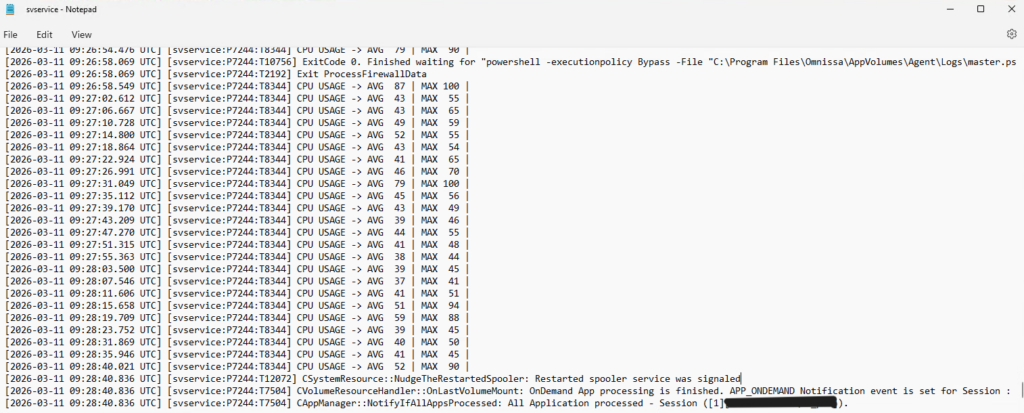
    At first, the svservice.log didn’t reveal anything unusual, aside from a few CPU‑related messages. The applications still launched, so nothing pointed directly to the root cause. Even older versions of the master image, including those with the previous agent, showed the same behavior. Disabling the DEM layer didn’t help, nor did excluding GPOs.
    Next, I turned my attention to the App Volumes Managers, but again, nothing suspicious appeared in the logs.

    To rule out other possibilities, I tested the same packages on our PackageVM, the machine we use to build and validate App Volumes packages. Interestingly, I couldn’t reproduce the issue there. With the same configuration and software stack as our VDI environment, everything worked flawlessly. It became clear that the App Volumes Manager or upgrade wasn’t part of the problem.

    So I went back to the svservice.log and examined it line by line. That’s when a specific entry caught my attention, one that pointed toward the Print Spooler.

    Restarting the Print Spooler service took just over two minutes, exactly matching the delay users were experiencing. That was the breakthrough. As a test, I applied the App Volumes registry key that prevents the Print Spooler from restarting when loading packages. Immediately, application launches returned to normal speeds.

    HKLM\SYSTEM\CurrentControlSet\Services\svservice\Parameters\
    DisableSpoolerRestart 
    Type: REG_DWORD 
    Value: 1

    Of course, leaving that registry key in place wasn’t a long term solution. We needed to understand why the Print Spooler was causing delays. Special thanks to Gunther Leeman for digging deeper. He discovered that a print driver monitor was responsible for the slowdown. Removing the related registry keys instantly resolved the issue. Further investigation showed that this component wasn’t required for printing functionality at all, so we want to removed it from the master image.
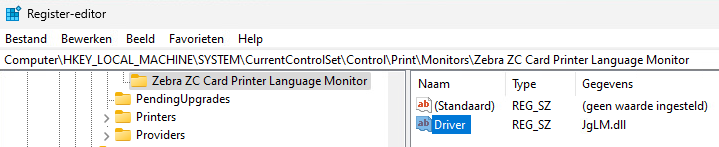
    That was the moment the last piece of the puzzle fell into place!
    We discovered that the problematic print driver wasn’t actually part of the master image. It was being installed on specific workstations during startup through a targeted action. That explained why the issue didn’t appear on the PackageVM, yet still occurred on earlier master images.

    We’ve now resolved the problem by including the print driver directly in the master image, but without the unnecessary print driver monitor.

    This issue was a reminder that even the smallest, most unexpected component can cause major disruptions. Sometimes it’s not the big changes or complex systems that trip you up, but a tiny detail hiding in plain sight.
  • From building to proving

    From building to proving

    Automation has become an integral part of our work. Many of our daily tasks are now largely automated.

    In the application domain: manual installation of applications? That’s long gone. Software packaging is often automatically triggered as well. With solutions like Winget, Chocolatey, and Evergreen, you hardly need to worry about it anymore. Installations and updates run fully automated.

    But in the end, it all comes down to one thing:
    does the application truly function as intended?

    From technology to user experience

    After installing or updating, there’s a step we simply cannot skip: testing. And that’s often where the biggest challenge lies. Testing has two dimensions:

    • Technical testing: Does the installation work as expected? Are all files present, does the application start correctly, and are there no error messages?
    • Functional testing: Does the application deliver what the user expects? Can you open documents, process data, or perform specific business tasks?

    In practice, we often see that testing:

    • is performed too little or not at all
    • is repeated in the same way without variation
    • frequently ends up with end users.


    These points are closely connected. Because tests often follow fixed patterns, they are perfectly suited for automation. By automating this process, tests can be repeated as often as needed, with consistent quality and without extra effort. Testing then becomes less of a burden for end users, transforming into an automated process that provides certainty and frees them up to focus on the work that truly matters.

    Taking testing to the next level

    Fortunately, there are solutions that make this process smarter. Login Enterprise by LoginVSI offers a powerful way to not only automate application testing but also elevate it to the next level.


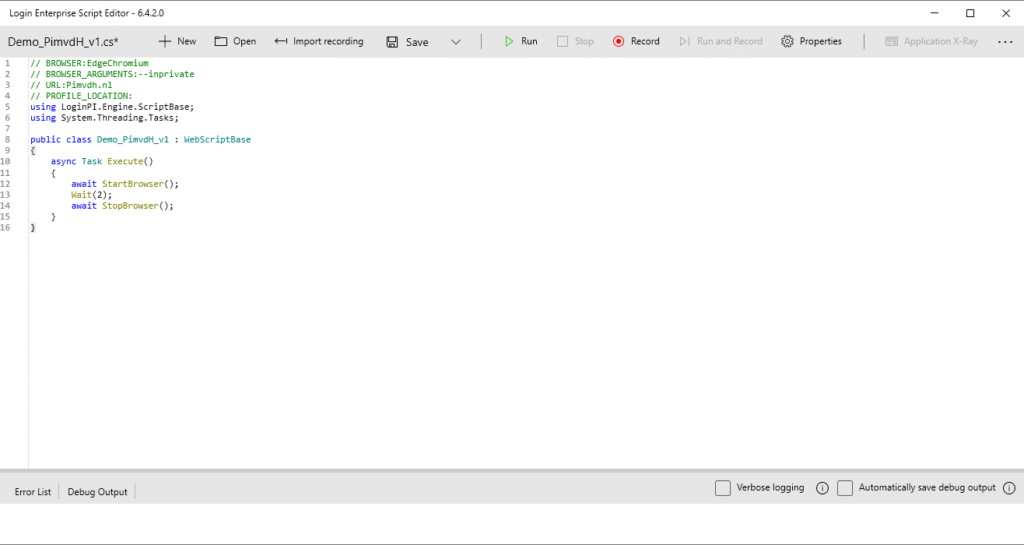
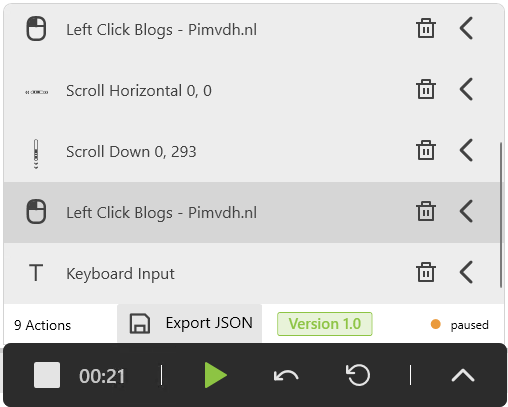
    With scripts, you can simulate user actions. From opening Microsoft Edge or working in PowerBI, to performing complex tasks in business critical applications. To create these scripts, LoginVSI developed a recorder. It was already available for Windows applications, and now there’s also a browser variant. This allows user actions to be easily recorded and automatically converted into a script. Where needed, a bit of fine-tuning can further perfect the scenarios.


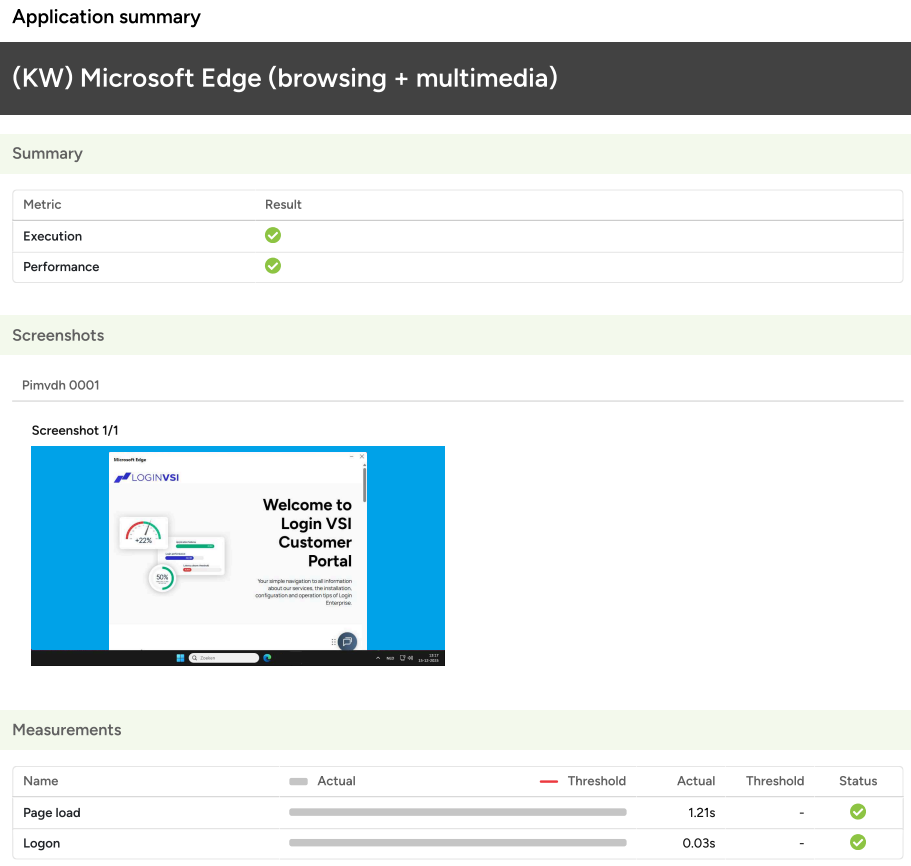
    These scripts can then be executed automatically, whenever you choose. This way, you don’t just know that an application is installed, you know it actually works as intended. Even more importantly, you immediately see when something breaks after an update, slows down, or throws errors. All of this is presented in clear, functional reporting. Testing thus shifts from a manual, time consuming task to an automated process that continuously provides insight and certainty.


    In this blog, I mainly highlighted the value of automated testing. In a later blog, I will dive deeper into the features and possibilities of application testing in Login Enterprise itself.

    If you’d like to learn more already, feel free to reach out or visit Login Enterprise.

  • Behind the Scenes of an App Launch

    Behind the Scenes of an App Launch

    In our daily practice with Omnissa AppVolumes and DEM, you sometimes run into unexpected challenges. This week I encountered one myself with an application that relies on shortcuts containing specific parameters.

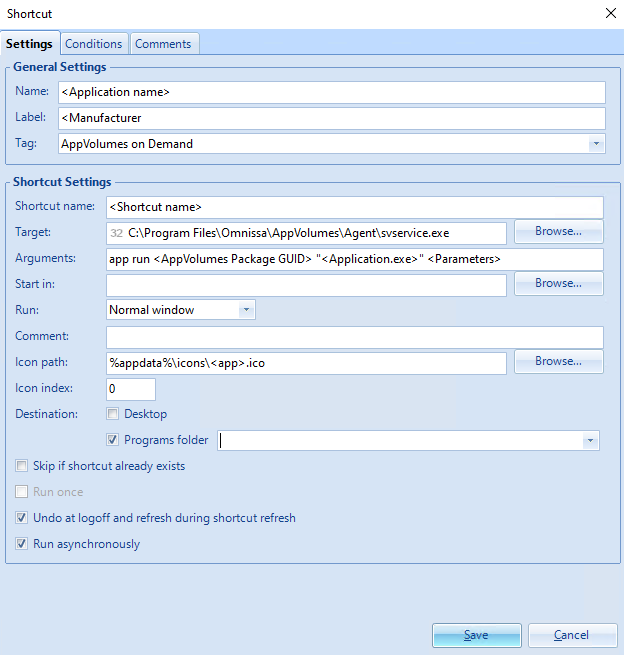
    Since the application only needs to be available to a relatively small group of employees, we decided to deliver it through an AppVolumes On Demand package. The shortcut itself was created in DEM, pointing to svservice.exe with the required app run parameters. Time to test…


    The Problem

    When launching the shortcut, the familiar AppVolumes notifications appeared, but then nothing happened: the application simply didn’t start. After checking, the AppVolumes package was indeed attached. So the next step was to look at the logs.
    In “C:\Program Files\Omnissa\AppVolumes\Agent\Logs\svservice.log” everything initially looked fine, the shortcut was reported as successfully started.

    On closer inspection, however, it turned out that not all parameters were passed along. And that was the crux: the application wasn’t receiving the full command line it needed to run.

    The complete command ended up being 282 characters long, exceeding the standard Windows limit. It was the combination of the AppVolumes On Demand option with the lengthy parameters that pushed it past this boundary, making a traditional shortcut insufficient.

    Workaround

    I am aware that there are other options available, such as modifying the MAX_PATH registry settings to allow longer arguments.

    [HKLM\Machine\System\CurrentControlSet\Control\FileSystem]
    "LongPathsEnabled"=dword:00000001 

    However, in this situation we deliberately chose not to go down that path.

    To work around this, I created a PowerShell script from which the application is launched.

    # Path to svservice.exe and arguments
    $svServicePath = "C:\Program Files\Omnissa\AppVolumes\Agent\svservice.exe"
    $appArguments  = 'app run <AppVolumes Package GUID> "<Application.exe>" <Parameters>'
    
    # Launch svservice.exe and wait until it completes
    Start-Process -FilePath $svServicePath -ArgumentList $appArguments -NoNewWindow -Wait

    And created a DEM shortcut that directly points to the PowerShell script.

    Functionally this worked well, but there was one drawback: when executing the script, a PowerShell console window briefly appeared. Even though it was only visible for a moment, I didn’t consider this desirable for the end user.


    From Script to .exe with PS2EXE

    That’s when I took it a step further. With PS2EXE, you can convert a PowerShell script into an executable file (.exe), see the PS2EXE project on GitHub for more information: https://github.com/MScholtes/PS2EXE. The advantage is that the script is “packaged” as a program, so no PowerShell window appears when it runs. For the end user, it feels just like starting a regular application.

    The script itself was fairly simple:

    Invoke-PS2EXE -InputFile "<Path to Script.ps1>" -OutputFile "<Path to Exe.exe>" -NoConsole -NoOutput
    

    By converting this script into an .exe with ps2exe, I can call it directly from DEM without the PowerShell window flashing up. The result: the application starts as intended, the parameters are correctly applied, and the end user notices no difference.


    Conclusion

    It may not be the most elegant solution, but it’s a pragmatic approach that removes friction for the end user. Sometimes these kinds of workarounds are exactly what’s needed to keep the environment stable and user-friendly. And it highlights how useful tools like ps2exe can be for eliminating small annoyances and improving the overall experience.

  • AppVolumes Package Report

    AppVolumes Package Report

    We regularly receive questions from customers seeking clarity about the contents of their AppVolumes packages. A common question is: What exactly is inside my package, and how can I view it?

    For experienced administrators, techniques like disabling the filter driver or analyzing the “AppDB.txt” file are familiar and easy to execute. But that’s not always the case for everyone.

    New in Version 2509

    With version 2509, AppVolumes introduced a valuable enhancement. When creating a package, the system now automatically generates additional JSON and HTML files that provide a clear overview of:

    • Folders and files
    • Registry keys and values
    • The overall structure of the package

    This makes troubleshooting much easier for many users and also helps you clean up your packages more effectively.

    Creating a Package

    Here’s the command I used to create a package for Notepad++:

    cd "C:\Program Files\Omnissa\AppVolumes\Agent\"
    appcapture.exe start /name NotepadPP /format vmdk /upgradecode {8e14035b-2fcc-49c6-814d-7ae010c445b8}

    Once the capture process has started, you can proceed to install the application as you normally would. In this case, I downloaded and installed Notepad++, making sure to complete the installation fully, including any optional components or settings relevant to the package.

    Of course, these installation steps are automated using deployment tools or scripts, ensuring consistency and saving time during packaging.

    After the installation is complete and the application is ready to use, you finalize the capture process with:

    cd "C:\Program Files\Omnissa\AppVolumes\Agent\"
    appcapture.exe finalize

    In the default output folder (C:\ProgramData\Omnissa\AppVolumes\Packages\), you’ll now find the following files:

    • NotepadPP.vmdk — the virtual disk containing the application
    • NotepadPP.json — metadata about the package
    • NotepadPP.report.html — a visual report of the package contents
    • NotepadPP.report.json — a structured report for automated analysis

    These new report files provide detailed insights into the folders, files, registry keys, and values included in the package, making troubleshooting and cleanup much easier.


    The Report Files

    You can open the .report.html file in any browser to get a clear, scrollable view of the package contents. Below is an example of how the html is displayed:

    The layout is clean and categorized, making it easy to spot unnecessary entries or validate that all required components are included.

    The .report.json file is ideal for scripting or integrating with other tools. You can parse it to:

    • Compare packages
    • Detect changes between versions
    • Generate cleanup scripts

    This structured format opens the door to smarter package management and auditing.

    Analyzing Existing Packages

    Want to analyze an existing package? You can use the following command:

    appcapture.exe packagereport /file "C:\Path\To\Your\Package.vmdk"

    This generates both the HTML and JSON report files into the package’s contents.


    It’s great to see a powerful product like AppVolumes continue to evolve and become even more user-friendly for both administrators and end users.

    For more information on release notes and command-line parameters, check out:

  • The shortcut that broke the flow

    The shortcut that broke the flow

    At one of our hospital clients, we deployed a new digital workspace built on Omnissa products like Horizon, App Volumes, and DEM. Ivanti Automation Manager was already in use. The EHR system receives multiple updates each month, including hotfixes. Previously, every update required a new image, a time-consuming and error-prone process.

    With App Volumes as our Application Layering solution, we gained flexibility. And we went a step further: we fully automated the packaging process.

    What we automated

    Using PowerShell scripts and an Ivanti Automation Runbook, we automated:

    • Creation of Ivanti Automation resources and modules
    • Creation of App Volumes Applications and Packages
    • Booting the Package VM
    • Installing the application into the App Volumes package
    • Reverting the Package VM to snapshot
    • Marking the package as ‘Current’
    • Assigning the package to users

    The only manual steps left are entering the HF number and providing the necessary credentials to execute tasks and link them to logging. Everything else runs automatically.

    Smart versioning with DEM integration

    To stay flexible, we place each application in a folder named after its version. This allows multiple versions to coexist across Test, Acceptance, and Production environments. The correct version is launched via a DEM shortcut using a variable:

    C:\Program Files (x86)\Chipsoft\Hix\%HiXPrd%\Chipsoft.hix.exe
    C:\Program Files (x86)\Chipsoft\Hix\%HiXAcc%\Chipsoft.hix.exe
    C:\Program Files (x86)\Chipsoft\Hix\%HiXTst%\Chipsoft.hix.exe

    In DEM, it’s easy to see which environment runs which version. Updating the variable is the only manual step, intentionally kept that way.

    And then it broke…

    Everything worked as expected. Until after an update, the service desk started receiving calls: the shortcut no longer worked.

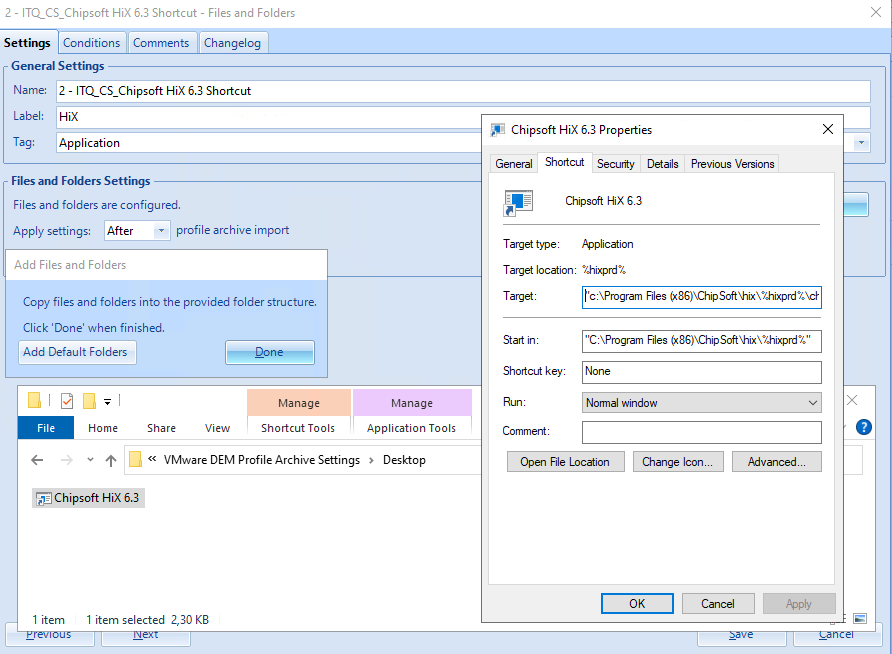
    Turns out some users had dragged the shortcut from the desktop to the taskbar. DEM translates variables into static paths. Once copied, the shortcut becomes fixed to a specific version. After an update, that path is no longer valid resulting in errors, frustration, and no access to the EHR.

    The fix: Files and Folders

    We solved this by no longer using DEM shortcuts. Instead, we use a Files and Folders action to place a file with the correct reference on the desktop and in the start menu. This preserves the variable and ensures the shortcut keeps working after updates.

    Conclusion

    Technical automation is incredibly valuable. It saves time and boosts reliability. But in the end, it’s all about the end-user experience. For them, it just has to work. That’s where the real value lies.

    I’m curious to hear if others have found a more elegant solution to this. Have you tackled similar shortcut issues in a smarter way? I’d love to learn from your approach.

  • UWP Apps are not being updated

    UWP Apps are not being updated

    In modern Windows environments, more and more built-in applications such as Calculator, Snipping Tool, Notepad, Paint, and Photos are delivered via the Microsoft Store. These apps are often based on the Universal Windows Platform (UWP), an architecture introduced with Windows 10.

    While this offers advantages in terms of distribution and consistency, it also presents specific challenges in managed enterprise environments.

    No updates in a VDI Environment
    In our environment, we use a reference image as the foundation for deploying VDI workspaces. During the creation of the Master Image, we apply optimizations using tools such as OSOT (Windows OS Optimization Tool for Omnissa Horizon). One of the standard optimizations is to disable access to the Microsoft Store, a logical step from both a security and management perspective.

    This setting is relatively easy to reverse. However, once Microsoft Store access is re-enabled, it turns out that updates still need to be performed manually and only when there is an active user session which connect to the Microsoft Store.

    During the image build process, this is far from ideal. The goal is to maintain full control, repeatability, and automation, without manual steps or user interaction. That’s why additional tooling is needed to update Microsoft Store apps in an automated and user independent way.

    Another side effect of missing updates is that UWP apps may not display in the correct language for the end user. Many Microsoft Store apps only load full language support after an update or reinstall.

    Using WinGet for Microsoft Store Apps
    In this investigation, I explored the use of WinGet, the Windows Package Manager, as one of the ways to address this issue. WinGet allows us to install and update Microsoft Store apps based on their Store ID, without requiring the Store itself to be accessible to end users.

    Step-by-step approach

    1. Cleaning up unwanted UWP Apps
      We use Aaron Parker’s script (Remove Universal Windows Platform / AppX apps | Windows Enterprise Defaults) to remove unwanted apps in advance. In our customized version, only UWP apps such as Edge, OneDrive, and Teams are retained.
    2. Installing WinGet (if needed)
      We check whether WinGet is already present. If not, we install it using the Microsoft.DesktopAppInstaller bundle: https://aka.ms/getwinget
    3. Installing Microsoft Store Apps via WinGet
      Using a script, we install apps based on their Store ID. These IDs can easily be retrieved via the Microsoft Store.
      • winget.exe install -e --id $App --accept-source-agreements
        --accept-package-agreements --silent --scope machine
    4. Logging and Monitoring
      Logs are stored in a central location, including a summary of installed apps and their versions. This gives us clear insight into what has been deployed.

    Conclusion
    Updating Microsoft Store apps in a VDI environment without user interaction remains a challenge. In this investigation, I explored WinGet as one of several possible solutions to automate this process. By using WinGet effectively, we can manage and update Microsoft Store apps without relying on the Microsoft Store interface or manual actions, offering a scalable, secure, and manageable approach for enterprise environments.